
Categories
 Device Compatibility
Your phone must be eSIM-compatible and carrier-unlocked (not locked to a specific carrier)
iPhone: Models from iPhone XS / XR and later support eSIM.
Android: Check your settings:Settings → SIM / Network → Add eSIM
If you see “Add eSIM” or “eSIM Manager,” your device supports eSIM. For best performance, we recommend using the latest version of iOS or Android.
Your phone must be carrier-unlocked. Even if your device is still being paid off, the eSIM will work only if your carrier unlocks the phone. Please contact your mobile carrier and request a carrier unlock before installing the eSIM.
 Installation & Activation
Step 1: Receive your printed QR code from Amazon.
Step 2:
• iPhone: Go to Settings > Cellular > Add eSIM and choose “Use QR Code.”
• Android: Open your SIM / Network settings and add an eSIM by scanning the QR code
Step 3: Connect to the network in Japan.
Yes. A stable Wi-Fi connection is required to download and install the eSIM profile.
You can install it:
• Before departure
• After arriving in Japan using airport Wi-Fi
We recommend installing the eSIM:
• 1–2 days before departure, or
• After arriving in Japan using airport Wi-Fi
The service starts once your device connects to a network in Japan. Please activate the eSIM before the expiration date printed on your activation card.
No. Each eSIM can only be installed once on a single device. If you delete the eSIM or reset your phone, the same QR code may not work again.
If your phone cannot scan the QR code, please check the following:
1. Make sure your phone supports eSIM
Your device must support eSIM functionality.
2. Make sure the phone is carrier-unlocked
Phones locked to a specific carrier may not allow eSIM installation.
3. Check that the QR code is clear
If the QR code is blurry, damaged, or partially covered, your phone may not be able to scan it.
4. Try increasing screen brightness
If scanning from another screen, increasing brightness may help the camera recognize the QR code.
5. Try manual activation
Some devices allow you to enter activation details manually instead of scanning the QR code.
 Network & Coverage
Yes. The eSIM connects to the SoftBank network, which provides nationwide 4G LTE and 5G coverage.
Coverage includes:
• Cities
• Airports
• Tourist destinations
• Most rural areas
Signal strength may vary in remote or mountainous regions.
No. The data allowance is shared across both networks. Once the data allowance is used up, the connection will stop.
 Data & Features
You can check your remaining data balance on the SoftBank usage page by following the steps below.
1. Make sure your phone is connected to the SoftBank or Y!mobile network in Japan.
The usage page can only be accessed while connected to the mobile network in Japan.
2. Turn OFF Wi-Fi.
Please disable Wi-Fi so that your device is using mobile data.
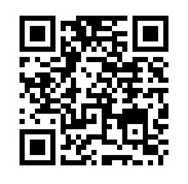
3. Scan the QR code or click the button below.
This will open the SoftBank usage status page.
4. Tap “Agree” on the page.
After agreeing to the terms, your remaining data balance will be displayed.
If for any reason you are unable to check your remaining data balance using the method above, you can still view an estimated data usage directly on your phone as a reference. Please note that the data usage shown on your device may not be 100% accurate, because it is tracked by the phone itself and may differ from the network measurement.
You can follow the instructions provided by your device manufacturer.
For iPhone
Please refer to Apple’s official guide: https://support.apple.com/ja-jp/109323
For Android
Android settings may vary depending on the device manufacturer (Samsung, Google, Xiaomi, etc.).
As an example, you can refer to Google’s official guide below: https://support.google.com/pixelphone/answer/2819524
If you want to track usage for your trip, you can reset the data statistics before using the eSIM.
For iPhone
Go to: Settings → Cellular → Reset Statistics
For Android
Steps may vary depending on the device manufacturer.
In most cases you can check data usage under: Settings → Network & Internet → Data Usage
No. This is a data-only eSIM. Voice calls and SMS are not included. However, you can make calls using apps such as:
• LINE
• WhatsApp
• FaceTime
• Skype
• Zoom
No. SMS authentication (2FA) is not supported, because the eSIM does not include a phone number.
Yes. Hotspot / tethering is supported on most devices. However, some older Android devices or carrier-locked phones may not support it.
Yes. Most modern smartphones support Dual SIM functionality. You can keep your physical SIM for calls and SMS while using the Japan eSIM for mobile data.
To do this:
1. Install the eSIM.
2. Set the Japan eSIM as the mobile data line.
3. Keep your physical SIM as the default voice line if needed.
No roaming charges will apply if you use the Japan eSIM for mobile data.However, if your original SIM card is still active for data roaming, your carrier may charge roaming fees.
To avoid unexpected charges:
• Turn data roaming OFF for your primary SIM
• Use the Japan eSIM for mobile data
No. This eSIM only works within Japan. The service will begin once your device connects to a supported network in Japan.
Yes. The eSIM works with:
• Google Maps / Apple Maps
• Train apps
• Taxi apps (Uber etc.)
• Boarding pass downloads
• Airport check-in
The 30-day validity period begins when your device first connects to a network in Japan. It does not start when you install the eSIM.
For example:
• Install the eSIM before departure → No problem
• The plan starts when you arrive in Japan and connect to the network
If your data allowance is fully used, the mobile data connection will stop. Even if the 30-day validity period has not ended, additional data will not be available. If you need more data, please purchase another eSIM plan.
 APN Settings
In most cases, the correct APN will be configured automatically.
iPhone: No action required.
Android: If necessary, enter the following settings:
APN: .4plusg
Authentication Type: CHAP
APN Type: default,ia,mms,supl,hipri
 Troubleshooting
If your eSIM does not connect, please check the following:
1. Confirm you are in Japan: This eSIM only works within Japan.
2. Turn on Mobile Data
Go to: Settings → Cellular / Mobile Data
Make sure:
• Mobile Data is ON
• The Japan eSIM is selected as the data line
3. Restart your phone: Restarting the device often resolves temporary network issues.
4. Try manual network selection: Go to network settings and select: SoftBank or Y!mobile
5. Turn off Wi-Fi: In some cases, the phone may stay connected to Wi-Fi instead of mobile data.
6. Check your remaining data: If your data allowance is fully used, the connection will stop automatically.